
Create a trip
A trip is a single job — one pickup, one drop-off, a date and a vehicle. Here's how to book one.
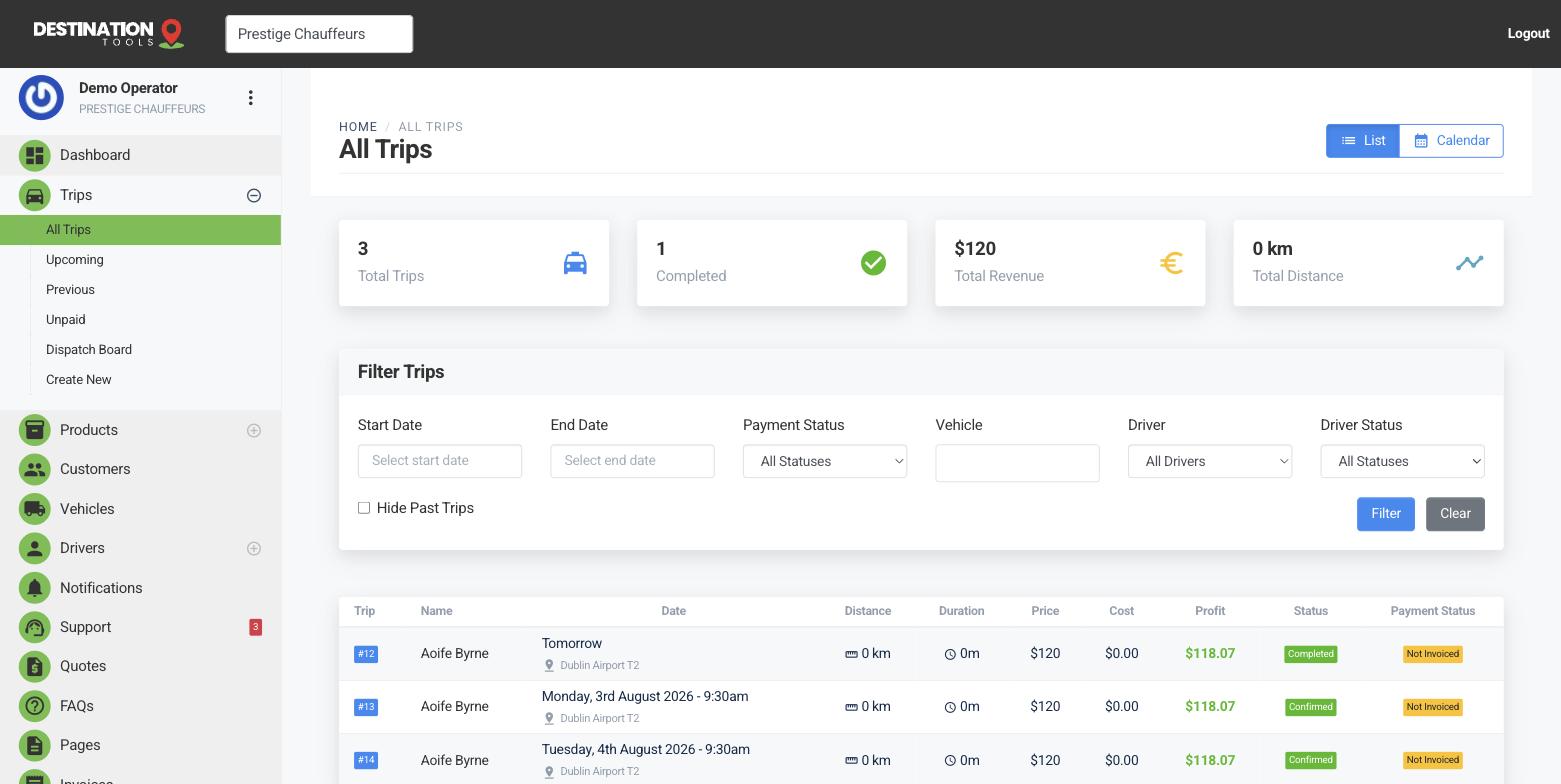
Book the job
Open Trips and select New trip. Enter your customer's name, email and phone, then set the pickup and drop-off addresses. As you type an address, suggestions appear — pick from the list so the location is pinned exactly. With both ends set, we work out the distance and estimated journey time for you automatically.
Where to find it
Dashboard → Trips → New tripSet the date, passengers and vehicle
Choose the pickup date and time, the number of passengers, and the vehicle for the job. The vehicle you pick controls the price: each car carries its own base fare and per-kilometre rate, so choosing the right vehicle keeps the quote accurate. Add any notes or special requirements — a child seat, extra luggage, a name board — so the driver has everything before they set off.
Where to find it
New trip → Date, passengers & vehicleOne-way or return
Leave the trip as one-way, or mark it as a return to capture the inbound leg at the same time. Return legs stay linked to the outbound job, so you can see the whole booking together. For airport runs, add the flight number and terminal — see Airport transfers.
What happens next
The trip is saved with a status of pending and, if you've connected payments, a payment status of its own. From here you can assign a driver, send a quote or invoice the trip.
Still need help?
Can't find what you're looking for? Send our support team a message and we'll reply by email.