
The dispatch board
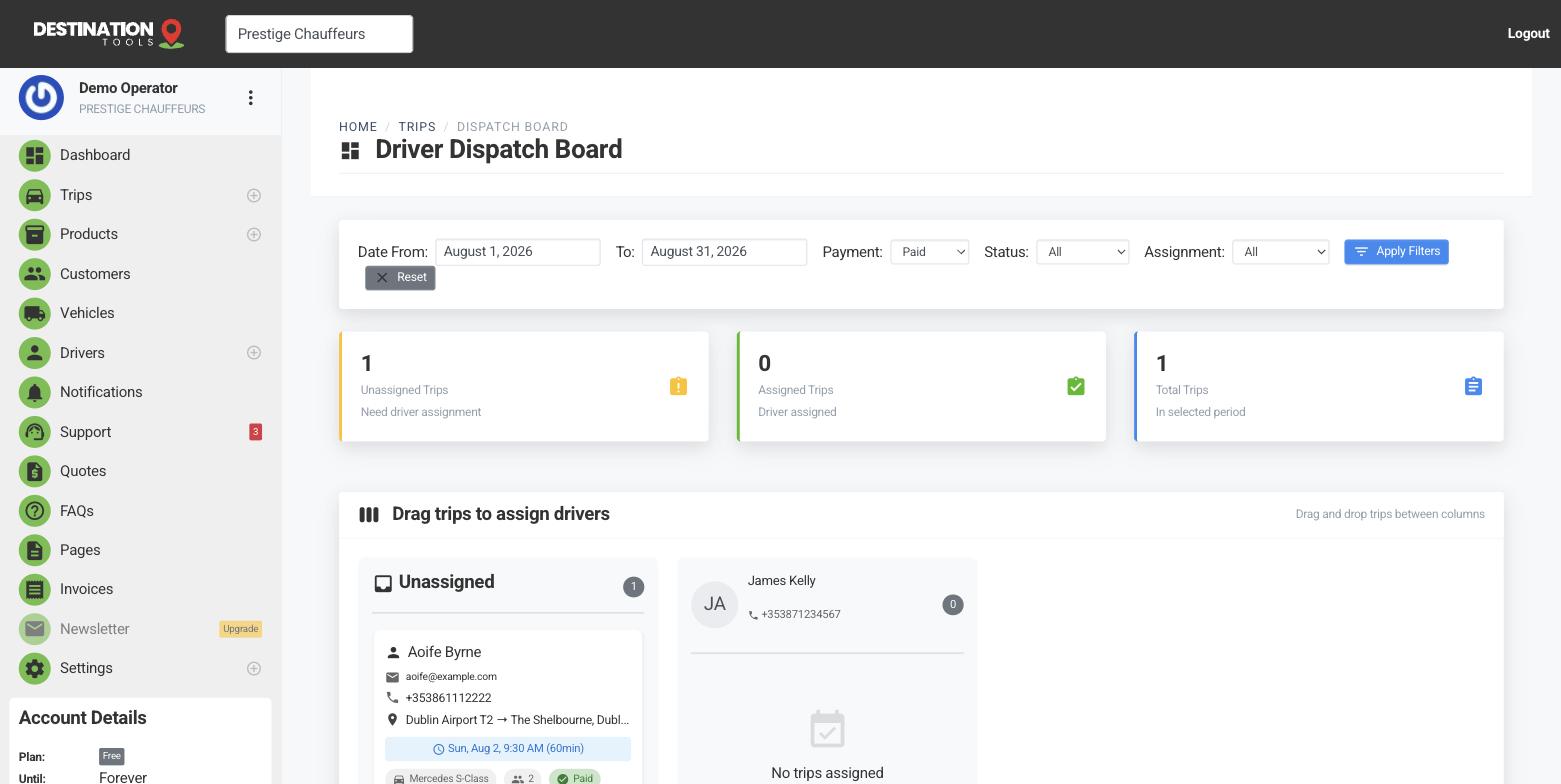
The dispatch board is your control room for the day: every trip that needs a driver, and every driver, on one screen.
Read the board
Open Dispatch. Trips that still need a driver sit in one place; your drivers sit alongside. At a glance you can see what's covered, what isn't, and who's already carrying a full load — so you spot the gap before the customer does.
Where to find it
Dashboard → DispatchAssign with a drag
Drag an unassigned trip onto a driver to give them the job. Changed your mind, or a driver's running late? Drag it to someone else and the trip moves across instantly — the previous driver's link stops working and the new driver gets their own. It's the same assignment you'd make on the trip screen, just built for planning a whole day at once. See Assign & reassign drivers.
Where to find it
Dispatch → drag trip → drop on driverFrom the board to the road
Once a driver has the job, send it to them by their secure trip link, SMS or Telegram, and follow the trip live as they move from en route to on-scene to completed.
Still need help?
Can't find what you're looking for? Send our support team a message and we'll reply by email.