
Assign a driver to a trip
Every trip needs someone behind the wheel. Assign a driver from the trip itself or from the dispatch board.
Assign from the trip
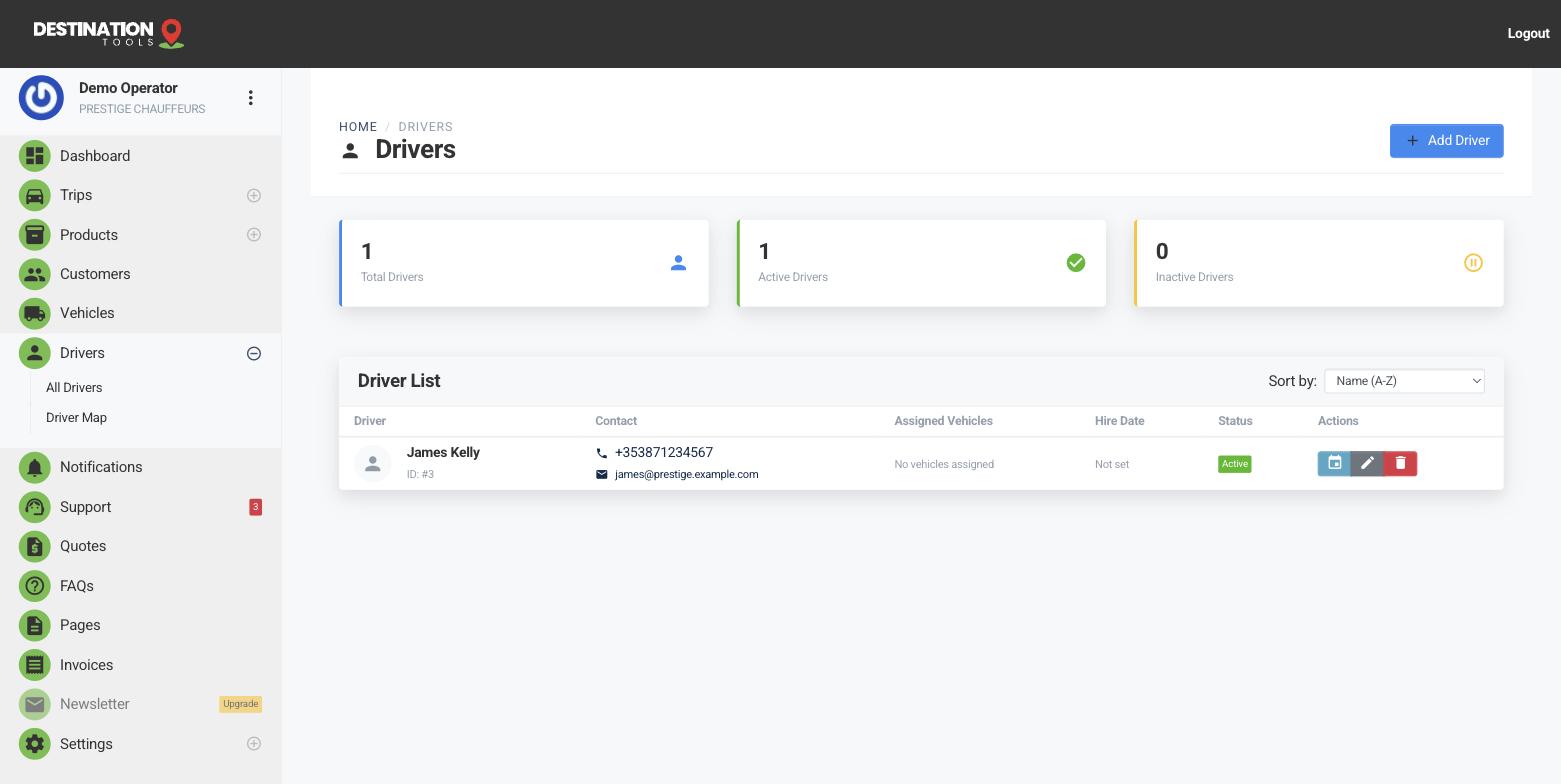
Open the trip and choose Assign driver. You'll see your active drivers; pick one and the job is theirs. If you've told us which vehicles a driver is cleared to use, the list makes it easy to match the right driver to the booked vehicle. A trip can only have one driver at a time, so assigning a new driver replaces the previous one.
Where to find it
Trips → open a trip → Assign driverAssign from the dispatch board
When you're planning a whole day, the dispatch board is faster: drag an unassigned trip straight onto a driver. It's the same assignment either way — use whichever suits the moment.
Where to find it
Dashboard → Dispatch → drag trip onto driverThe driver gets a secure link
As soon as a driver is assigned, we generate a private link for that job. Send it to the driver and they can open the run sheet — pickup, drop-off, passenger and timing — without needing a login. Opening the link also lets their phone share its location, so you can follow the trip from en route to completed. See the driver's trip link.
Changing your mind
Need to swap drivers? Assign a different one and the job moves across — the old driver's link stops working and the new driver gets their own.
Still need help?
Can't find what you're looking for? Send our support team a message and we'll reply by email.