
Create a quote
For anything more than a simple point-to-point, send a quote. One quote can hold several trips and turns into an invoice the moment the customer says yes.
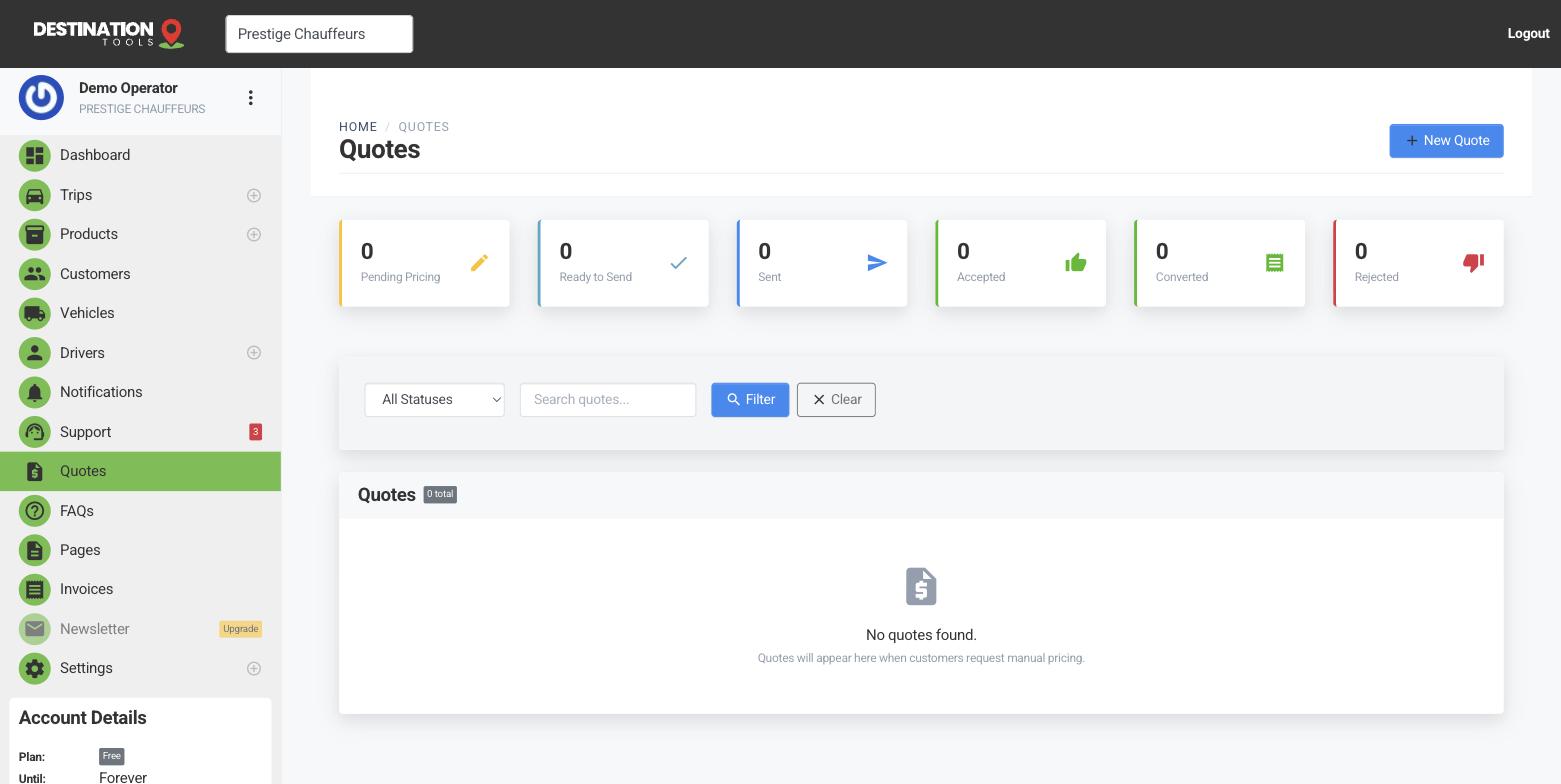
Start the quote
Open Quotes and select New quote. Add the customer's details, then add the trips that make up the job — a wedding might be a pickup, a venue transfer and a late return; a corporate booking might be five airport runs across a week. Each trip has its own pickup, drop-off, date and vehicle.
Where to find it
Dashboard → Quotes → New quotePrice each trip
With the trips added, price them. Pick a vehicle and let the distance and the car's rates set the figure, or type your own price for a fixed job. A quote can't be sent until every trip is priced, so nothing goes out with a gap. The quote total updates as you go. See Price the trips on a quote.
Where to find it
Quote → each trip → PriceSend it and track it
Send the quote by email and the customer opens it on a clean, branded page — no login needed. You'll see when they've viewed it, and you can message back and forth right on the quote to answer questions.
When they accept
An accepted quote can be converted straight to an invoice, carrying the trips and pricing across — no re-keying.
Still need help?
Can't find what you're looking for? Send our support team a message and we'll reply by email.