
Airport transfers & flight numbers
Airport runs live and die on timing. Capture the flight so your driver is there when the passenger walks out — not circling the terminal.
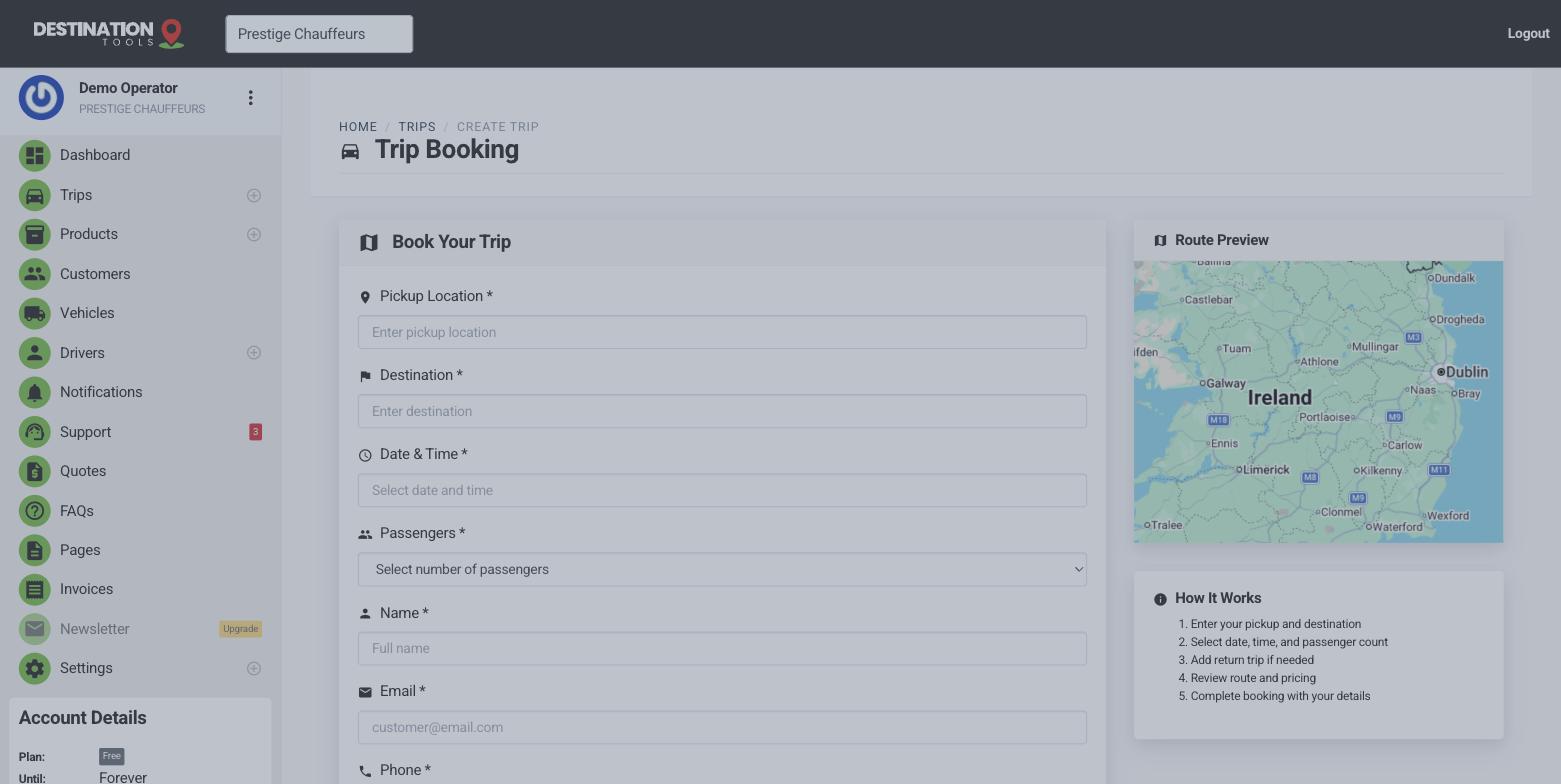
Add the flight details
When you create or edit a trip, add the flight number and terminal. They sit on the trip alongside the pickup and drop-off, so whoever's driving knows exactly where to be and which flight they're meeting. For an arrival, the airport is the pickup; for a departure, it's the drop-off.
Where to find it
Trips → New trip → Flight number & terminalMeet-and-greet details
Use the notes and special-requirements fields for the things that make an airport pickup smooth: the name for the name board, a terminal meeting point, or a phone number to call on landing. It all travels with the job to the driver's trip link.
Returns for round trips
Booking someone out and back? Set the outbound as a departure transfer and add the return as an arrival, so both legs are captured together and linked as one booking. See Return & round-trip bookings.
On the day
Assign a driver and send the job. Because the flight number is on the trip, the driver has everything they need to track the flight and adjust if it's early or delayed. See the driver's trip link.
Still need help?
Can't find what you're looking for? Send our support team a message and we'll reply by email.