
Add a driver
Your drivers are the face of every trip. Add each one once — name, phone, email and photo — and they're ready to assign and dispatch.
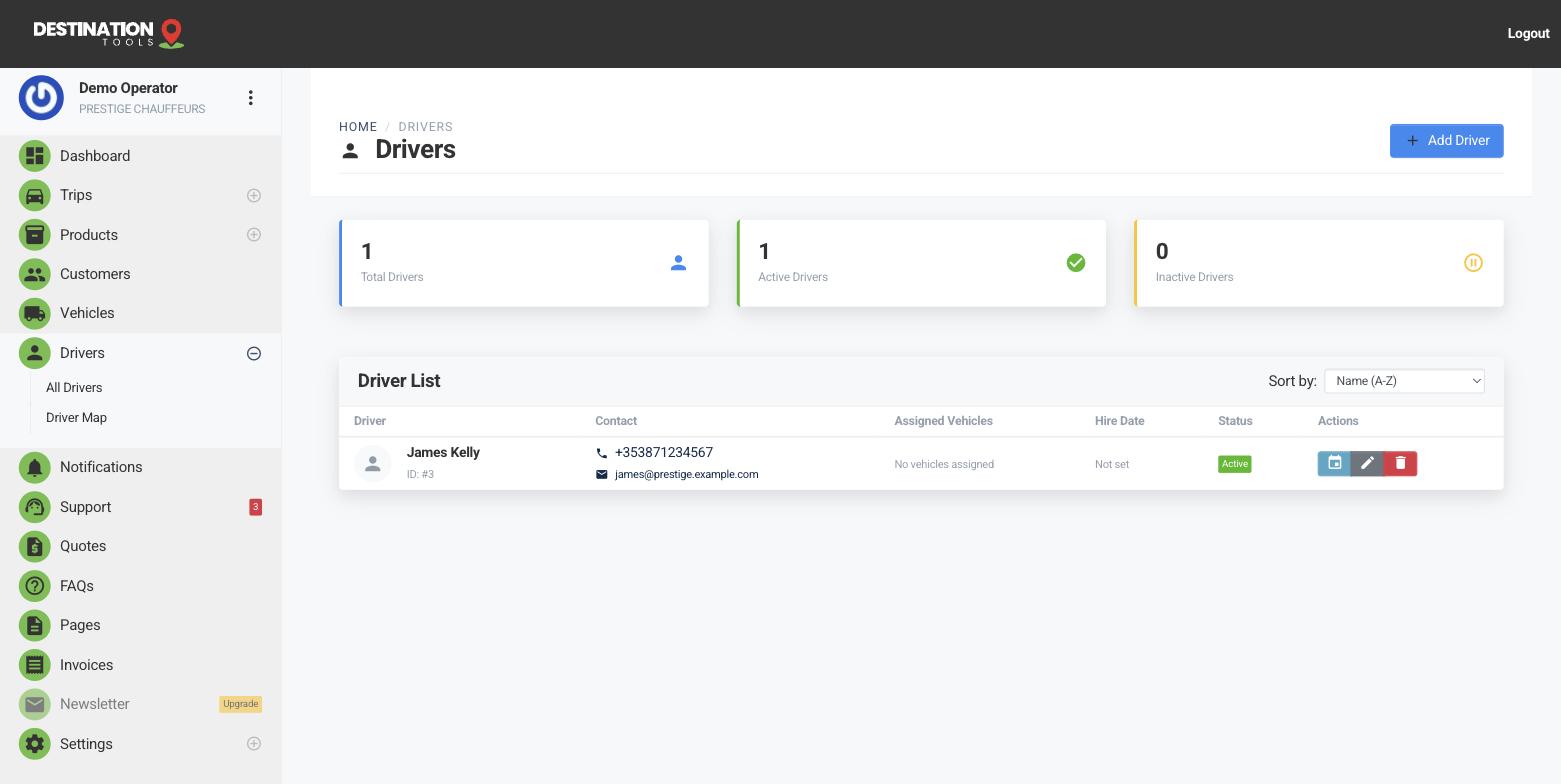
Create the driver
Open Drivers and choose Add driver. Enter the driver's name, phone number and email, and upload a photo. That's all it takes to make them available in the assignment picker and to have them show up on the dispatch board. A new driver like James Kelly is ready to carry jobs the moment you save.
Where to find it
Dashboard → Drivers → Add driverGet the contact details right
The phone and email you enter are the channels job alerts travel down — a text with a trip link, a Telegram ping, an emailed run sheet. If a number has a typo, the driver never gets the job. Take a moment to confirm them, and add the driver's mobile in full international format if you dispatch by SMS.
Where to find it
Add driver → Name, phone, email, photoWhy the photo helps
A clear headshot isn't decoration. On a busy morning with three airport runs overlapping, a photo on the dispatch board lets you tell drivers apart at a glance, and a good photo reassures the passenger who's waiting at arrivals for a stranger in a suit. Use a plain, well-lit shot rather than a group photo or a logo.
Tell us which cars they drive
Once the record exists, link the driver to the vehicles they're cleared and comfortable to handle — the executive saloon, the 8-seater van, the minibus. When a trip is booked on a particular car, matching drivers stand out so you assign the right person fast. See Which cars a driver can drive.
What happens next
With a driver in place you're ready to run jobs. Assign them to a trip from the trip screen or the dispatch board, and they'll receive a private trip link with the full run sheet and live location. Adding your first driver is one of the three steps on the first-trip checklist — add a car, add a driver, then book and dispatch a trip.
Still need help?
Can't find what you're looking for? Send our support team a message and we'll reply by email.