
Driver status & performance
Keep your roster tidy with active and inactive status, and review each driver's completed trips and journey times — then watch the whole team move on the Driver Map.
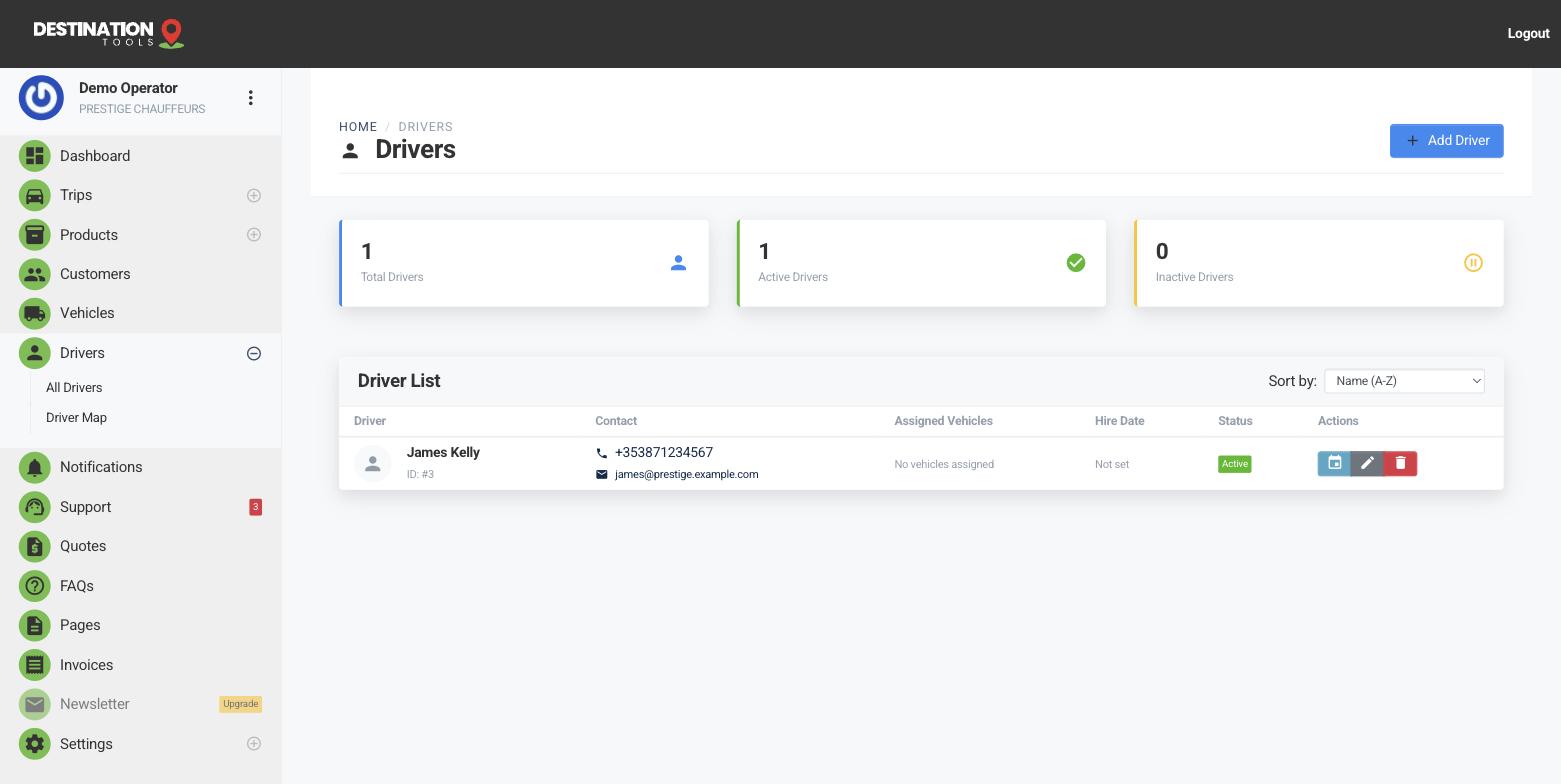
Active vs inactive
Set a driver to inactive when they're on leave, off sick, or have left the firm — they drop straight out of the assignment picker without you deleting anything. Their trip history and performance stay intact, ready for when they're back and you switch them active again. Only active drivers can be assigned to new trips, which stops a job quietly landing with someone who's away.
Where to find it
Dashboard → Drivers → edit driver → StatusReview a driver's performance
Open any driver to see the trips they've completed and their journey times — a simple, honest read on workload and reliability. Use it to balance the roster across the week, spot who's carrying the busy mornings, and reward the driver who's quietly done the most airport runs this month.
Where to find it
Dashboard → Drivers → open a driverThe Driver Map
The live Driver Map shows where your drivers are right now, drawn from the location their trip links share while a job is running. It's the fleet-wide view that sits behind the single-trip tracking on the dispatch board — useful when a last-minute booking comes in and you want to see who's nearest, or when a customer rings and you'd like to answer before you've even opened the trip.
How status shapes dispatch
Status flows through everywhere you assign work. An inactive driver disappears from the trip picker and from the dispatch board, so you're only ever dragging jobs onto people who can actually take them. Pair status with vehicle clearances — see Which cars a driver can drive — and the board only ever offers you drivers who are both available and cleared for the car.
Keeping the roster healthy
Make a habit of reviewing status and performance at the start of each week. Deactivate anyone on holiday, reactivate returners, and glance at completed trips and journey times to keep the load fair. A tidy roster means a tidy board — and fewer surprises when the phone rings for a same-day pickup. When you're ready to hand out the day's work, head to Assign a driver to a trip.
Still need help?
Can't find what you're looking for? Send our support team a message and we'll reply by email.