
Send & track a quote
Email a quote as a clean, branded page and see the moment the customer opens it — so you know exactly when to follow up.
Send the quote
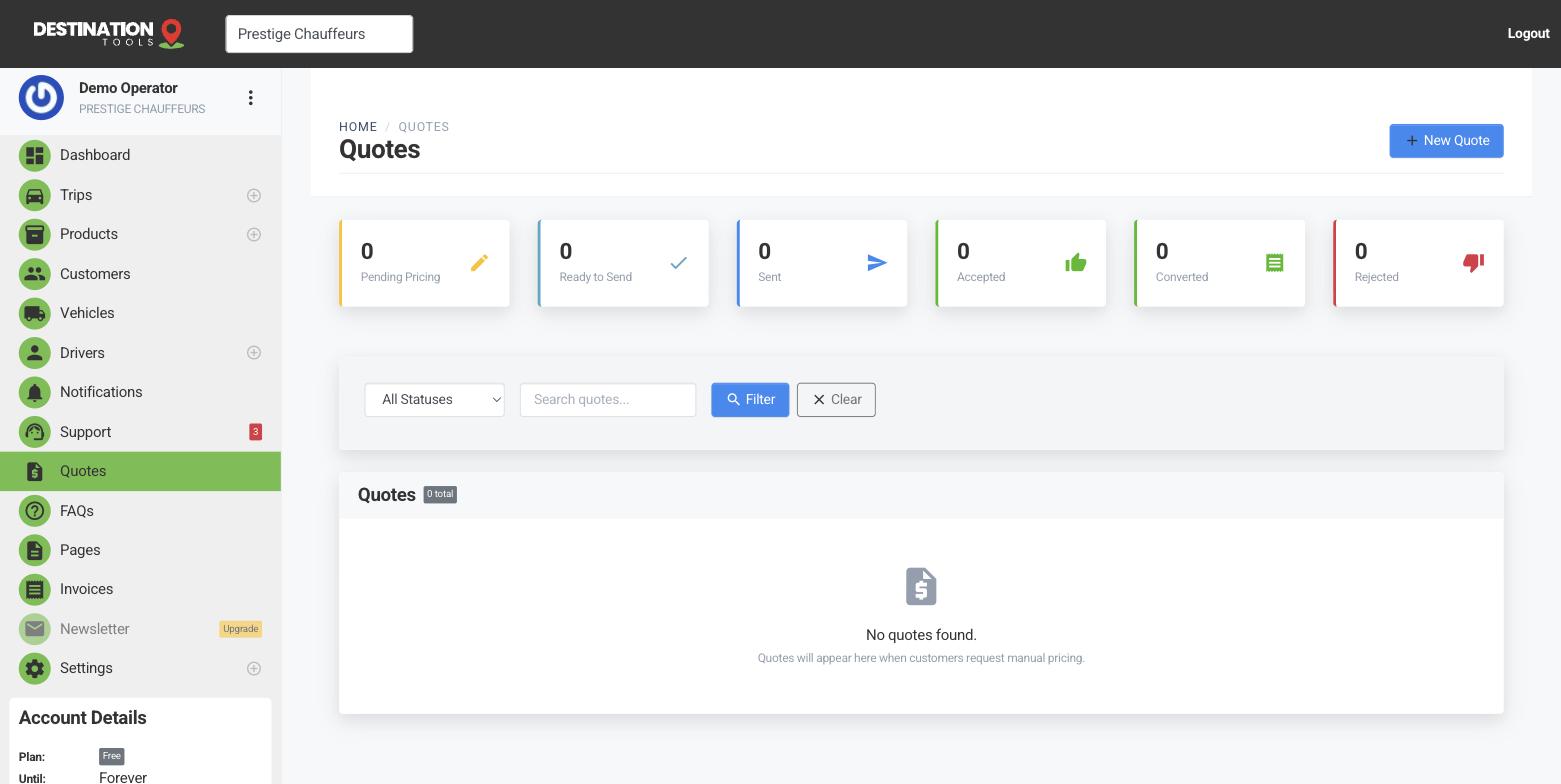
Once every leg is priced, open the quote and choose Send. The customer gets an email with a link to a clean, branded page carrying your logo and details — no login, no account to create. They see the trips, the pricing and the total laid out plainly, and can accept from that same page. Everything they need to decide is in one place.
Where to find it
Dashboard → Quotes → open a quote → SendSee when it’s viewed
After you send, the quote shows when the customer has opened it. That single signal tells you whether to give them room or pick up the phone — a quote that’s been viewed twice and gone quiet is a very different follow-up from one that was never opened at all. You’re never guessing whether it landed.
Where to find it
Quotes → open a quote → Viewed statusFollowing up
If a quote goes quiet, a quick nudge often closes it. Keep the conversation on the quote itself rather than a separate email chain, so the full back-and-forth stays attached to the job — see Quote messages & replies. When Aoife Byrne replies asking whether the S-Class seats four with luggage, the answer lives right there on her quote.
Need a change?
If the customer wants a different vehicle, an added stop or a tweaked date, adjust the trips and re-price before re-sending — see Price the trips on a quote. The updated quote goes out on the same clean page, and you’ll see when they’ve viewed the new version.
When they say yes
Once the customer accepts, you can convert the quote straight to an invoice with the trips and pricing carried across — see Accepting & converting a quote. Building quotes from scratch each time? Start from Create a quote.
Still need help?
Can't find what you're looking for? Send our support team a message and we'll reply by email.