
Notifying the driver
Assigning a driver puts the job on your board. Notifying them puts it in their hand — the run sheet, on their phone, wherever they are.
Send the job
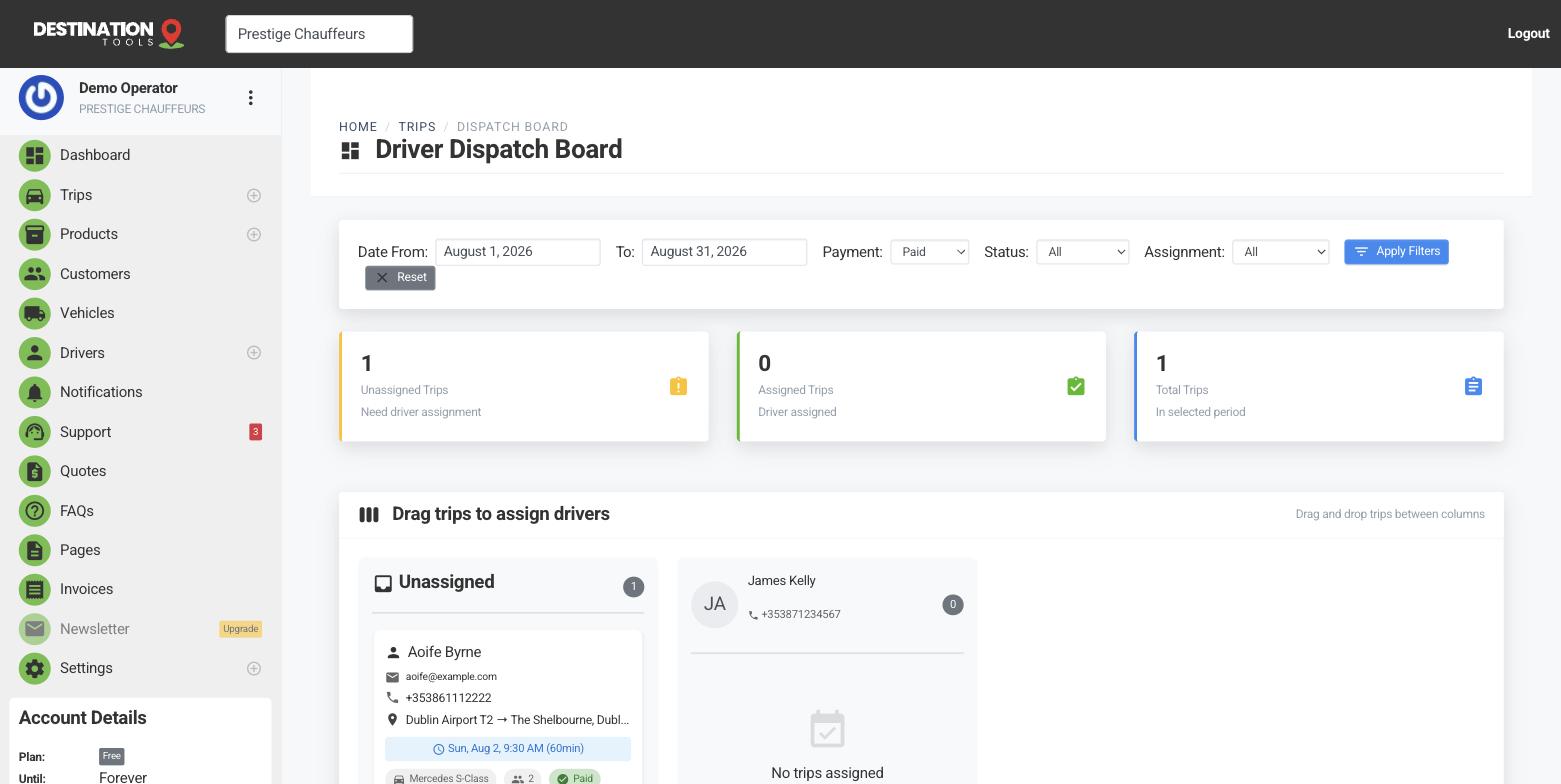
Once a driver is assigned, send them the job from the trip or the dispatch board. What goes across is their secure trip link — one tap and they're on the full run sheet: pickup, drop-off, passenger, timing, and any notes or flight details. No login, no app to install.
Where to find it
Dispatch → assigned trip → NotifyChoose the channel
Reach each driver the way they actually work. Send the link by SMS for someone who lives in their texts, or by Telegram for a team that runs on it, or let it ride along with the emailed job alert. Set up the channels you use in your integration and notification settings, and new jobs go out the instant they're assigned.
Where to find it
Settings → Integration Settings (Telegram / SMS) & Notification SettingsFrom notified to on the road
The driver opens the link, taps Start Trip when they set off and Complete Trip at the drop, and you follow it live from your board. Getting the job to the driver quickly and reliably is the difference between a smooth day and a scramble — for how to configure the channels themselves, see Driver job alerts.
Still need help?
Can't find what you're looking for? Send our support team a message and we'll reply by email.