
Following a trip live
Once a driver is on the road, you can follow the job from your screen — where the car is, and which stage of the trip it's at — without ringing anyone.
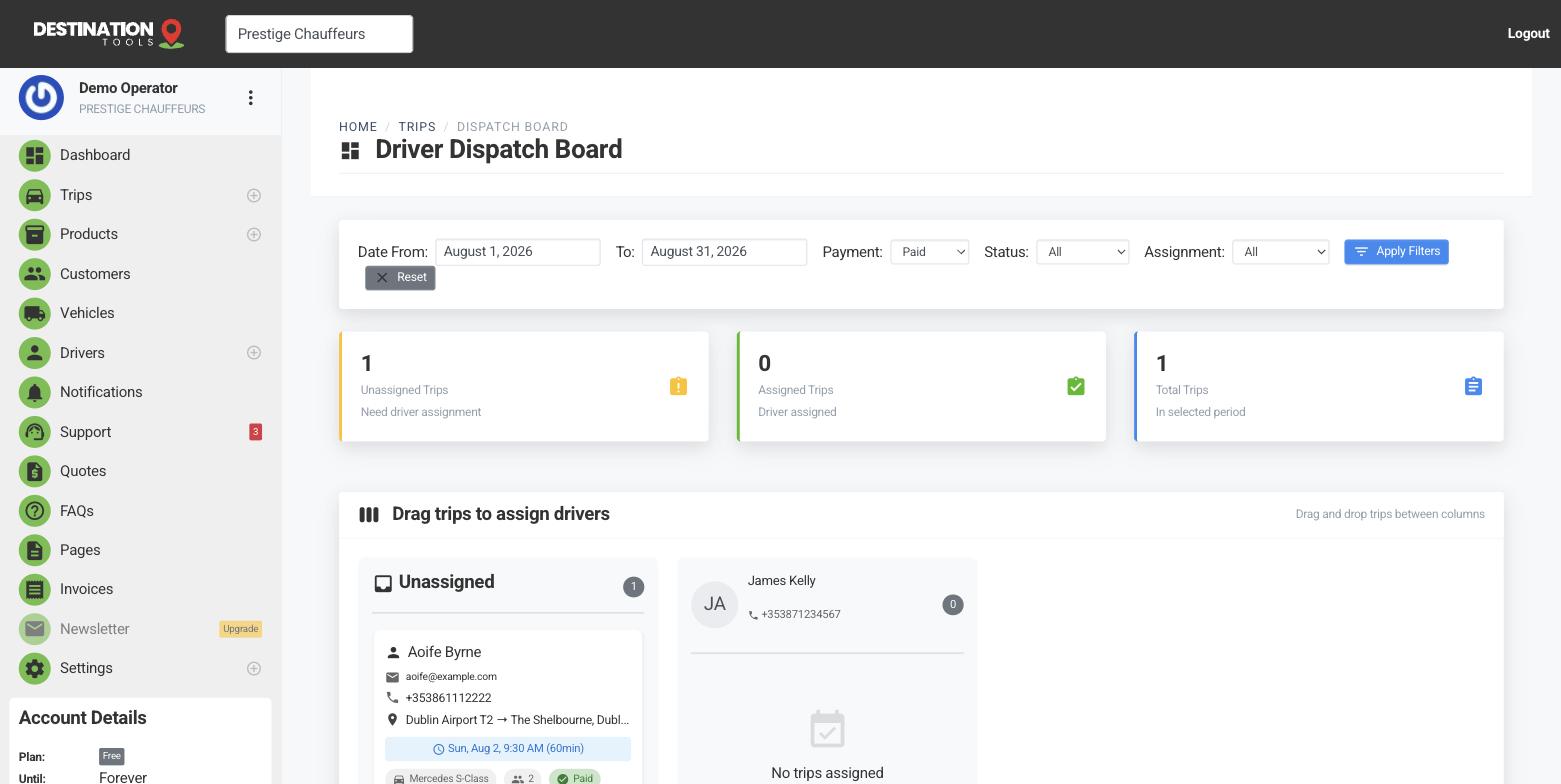
Watch the trip move
When a driver opens their trip link and taps Start Trip, their phone begins sharing its location and the job moves through en route, on scene and completed. From dispatch you can see where the car is and how the run is progressing — the answer to “where's James?” is on your screen, not at the end of a phone call.
Where to find it
Dashboard → Dispatch → an in-progress tripStart and finish are recorded
Tapping Start Trip and Complete Trip stamps the trip with the time and location of each, so the job's history isn't a guess. That's useful when a customer queries a pickup time, or when you're reviewing a driver's day — the record is there, captured automatically as the work happened.
Where to find it
Trip → start / completion times & locationsReassure the waiting customer
Live progress is what lets you tell a nervous passenger — or an operations desk waiting on a delegation — exactly where their car is, with confidence. It turns a stream of “is my driver close?” calls into a quick, certain answer, which is precisely the calm, in-control impression a chauffeur service is selling.
Still need help?
Can't find what you're looking for? Send our support team a message and we'll reply by email.