
Driver job alerts
When a job becomes a driver's, tell them straight away — with the run sheet on their phone the moment the trip is theirs.
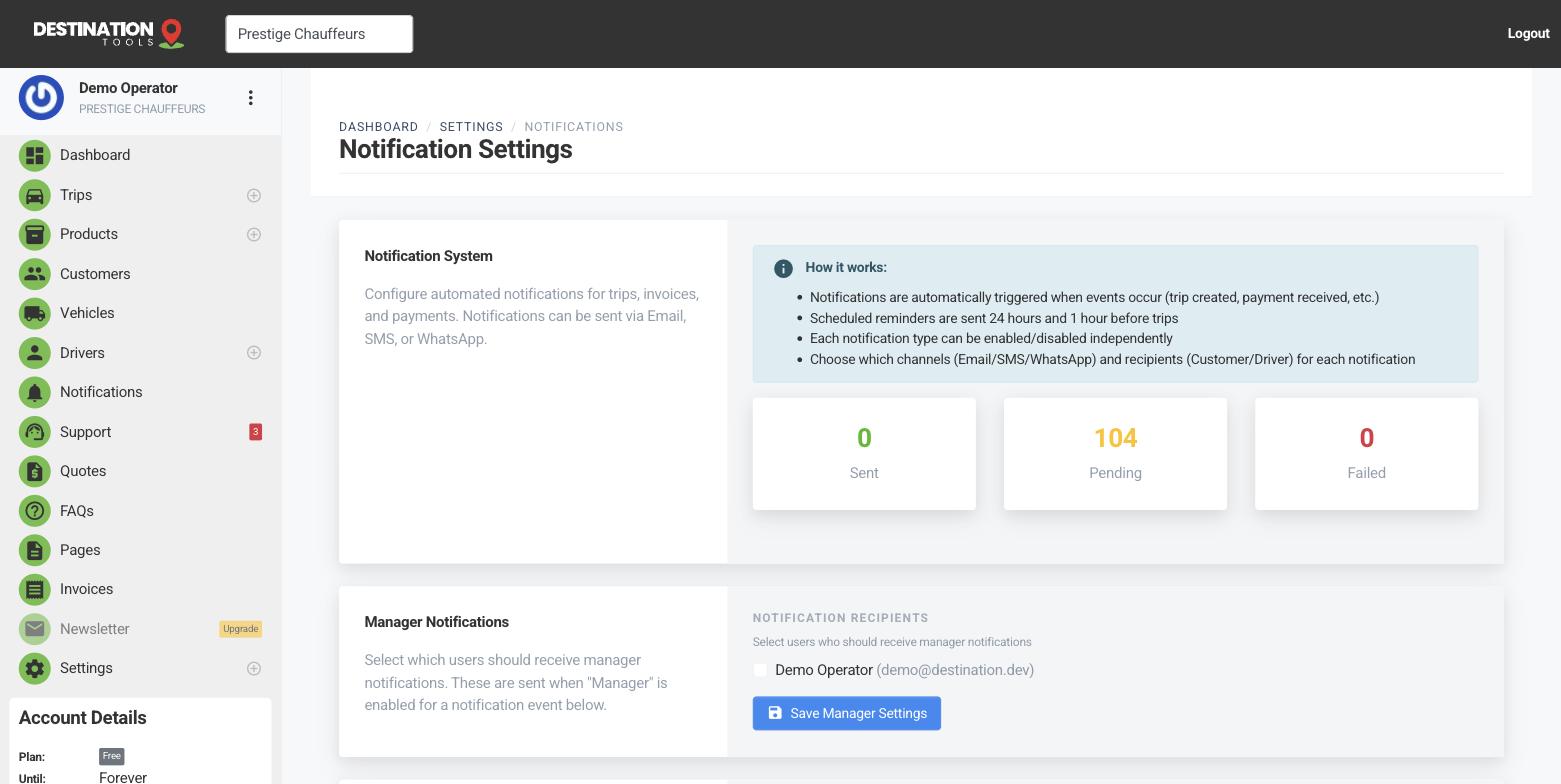
The alert carries the trip link
A driver alert is really a delivery of their secure trip link. Open it and the driver has the full run sheet — pickup, drop-off, passenger, timing, notes and any flight details — without a login or an app. So “you've got a job” and “here's everything you need for it” are the same message.
Where to find it
Dispatch → assigned trip → Notify driverChoose the driver's channels
In Notification Settings, for each event you can switch on the driver as a recipient and pick their channels — email, SMS, WhatsApp or Telegram. Turn on the ones your drivers actually watch so a newly assigned job pings them instantly rather than waiting to be spotted.
Where to find it
Settings → Notification Settings → event → DriverConnect the channels first
SMS and WhatsApp alerts need your Twilio details, and Telegram needs your bot connected — all set up in Integration Settings. Once connected, the on/off toggles in Notification Settings decide who gets what. Email works out of the box on a properly configured sending domain.
Where to find it
Settings → Integration Settings (Telegram / Twilio)Why speed matters
Fast, reliable alerts are the quiet backbone of a smooth operation. When James Kelly gets the airport run on his phone the second you assign it — not twenty minutes later when he next checks email — the whole day runs to time. For the moment-of-dispatch view, see Notifying the driver.
Still need help?
Can't find what you're looking for? Send our support team a message and we'll reply by email.