
A trip's distance won't calculate
No distance means no price on a distance-based vehicle. Nine times out of ten it's the addresses — here's how to put it right.
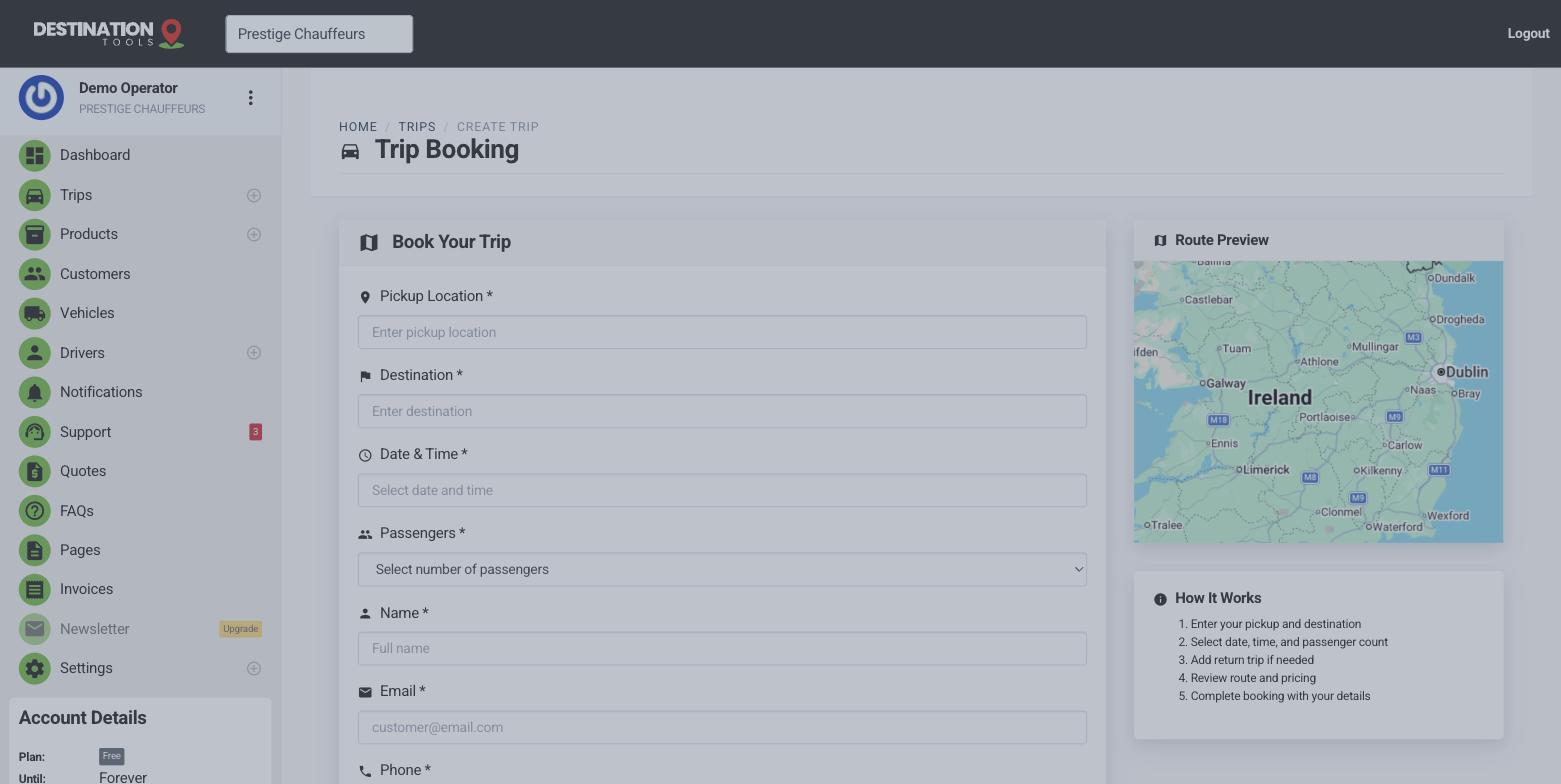
Re-select both addresses
The usual cause is an address that was typed but never chosen from the suggestions, so it isn't pinned to a real place. Clear the pickup and the destination and re-select each from the dropdown as it appears — when both ends are properly pinned, the distance and estimated time calculate automatically.
Where to find it
Trips → open the trip → re-select Pickup & DestinationAwkward or remote locations
Very new addresses, rural spots or unusual points sometimes aren't recognised, or there's no drivable route the map can measure. Try a nearby landmark, a business name or a postcode that pins to roughly the same spot — close enough for an accurate distance, and you can note the exact meeting point in the trip's notes for the driver.
Where to find it
Pickup / Destination → try a landmark or postcode nearbyPrice it by hand if needed
If a distance genuinely can't be worked out for an unusual job, you're not stuck — you can still create the trip and set the fare yourself, or send a quote with your own figure. The automatic distance is there to save you time, not to block a booking you know the price of.
Where to find it
Trip / Quote → set your own priceUnderstanding the pieces
Distance drives the fare through each vehicle's pricing, and it's calculated from the two pinned addresses — so a vague address throws the price, not just the map. For the full picture of how addresses, distance and journey time fit together, see Pickup & drop-off addresses.
Still need help?
Can't find what you're looking for? Send our support team a message and we'll reply by email.