
Record a manual payment
Not every fare comes in by card. When cash changes hands or a bank transfer lands, log it against the invoice so your books match reality.
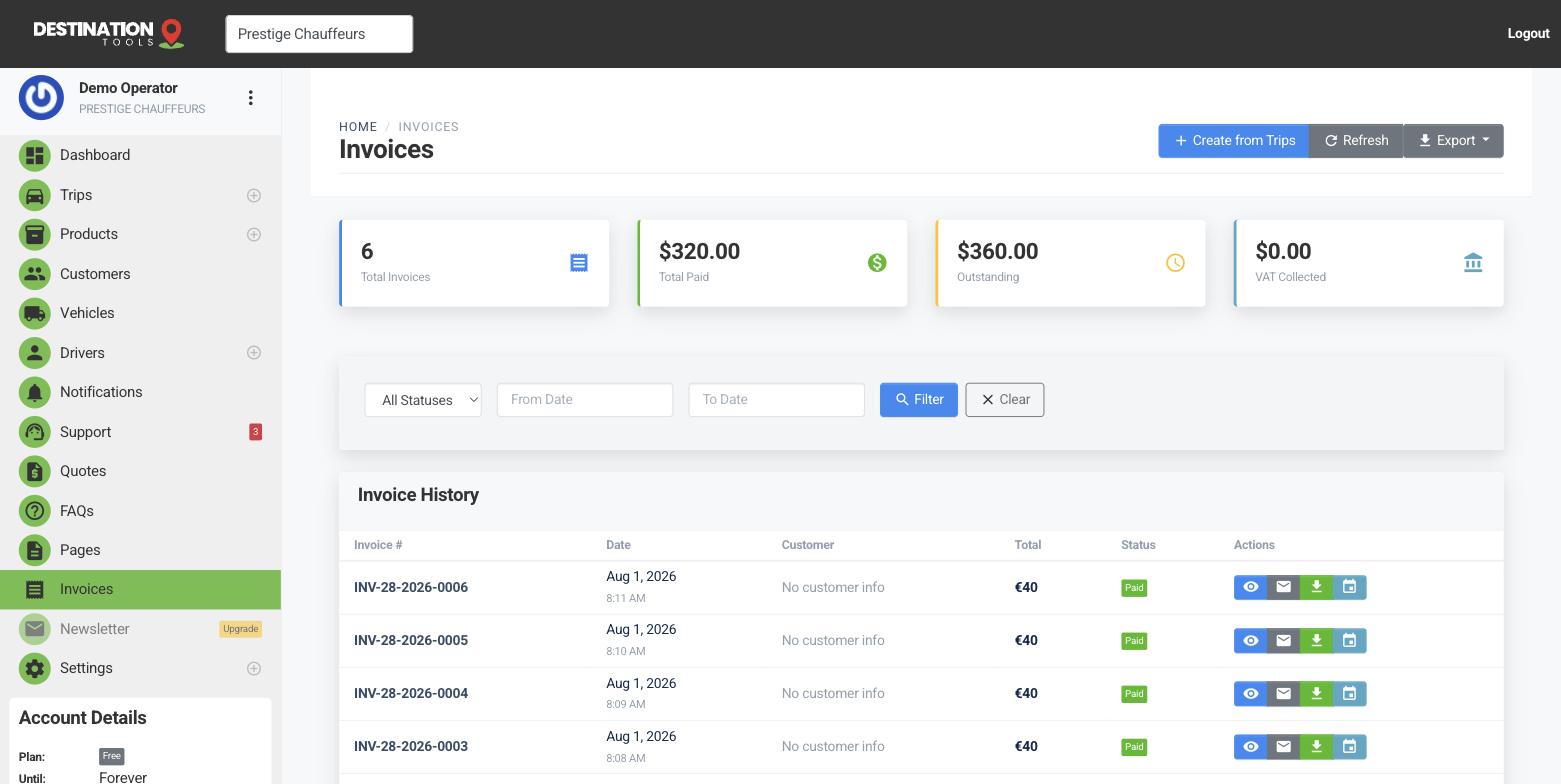
Log the payment
Open the invoice and choose Record payment. Enter the amount, pick the method — cash, card or bank transfer — and add a note if it helps (a reference number, or “paid to driver on the day”). The invoice updates immediately, moving from unpaid toward paid, so an off-card payment is captured just as cleanly as an online one.
Where to find it
Dashboard → Invoices → open an invoice → Record paymentPartial payments are fine
You don't have to record the whole amount at once. Log a cash deposit now and the balance later — the invoice always shows what's been paid and what's still outstanding, and only flips to fully paid when the totals meet. You can't record more than the balance owing, so a mistyped figure won't overpay an invoice.
Where to find it
Record payment → amount (up to the balance due)It settles the trip too
When a recorded payment clears an invoice, the linked trip's payment status updates as well — so a job you were paid for in cash drops off your Trips → Unpaid list without any extra step. Your operational view and your accounts stay in agreement.
Where to find it
Dashboard → Trips → Unpaid (clears once recorded)Where it fits
Recording payments by hand is how you handle cash jobs, bank transfers from account customers, and anything settled outside your card provider. Pair it with card payments through Stripe or Revolut for online bookings, and you can take money however each customer prefers — see Payment providers & methods.
Still need help?
Can't find what you're looking for? Send our support team a message and we'll reply by email.