
Google Calendar
Push your trips to a Google Calendar so drivers and office staff see the day's schedule in a place they already check — their phone, Outlook, wherever they live.
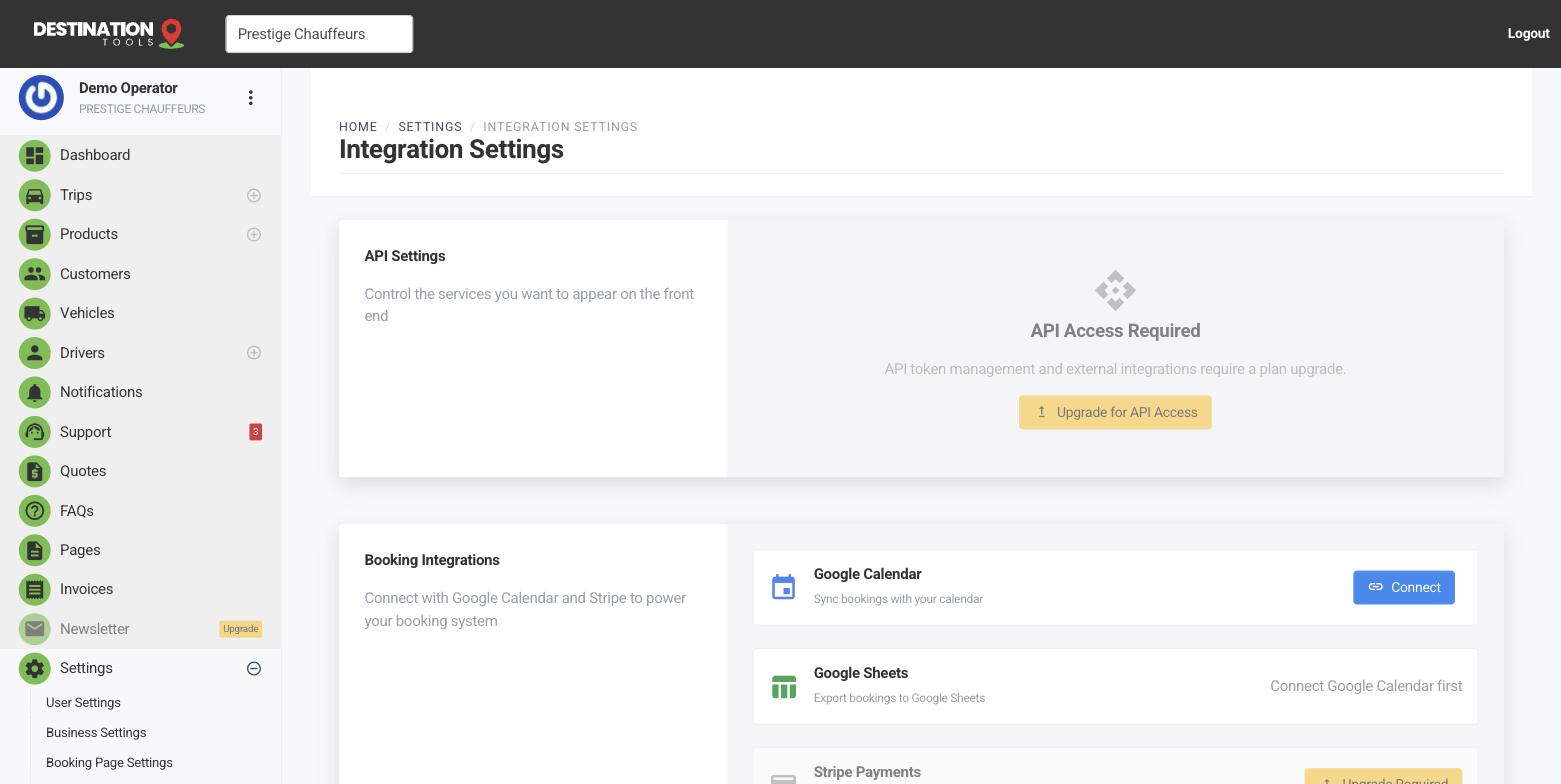
Connect the calendar
Open Settings → Integration Settings and start the Google Calendar connection. You'll sign in to Google and grant access, then you're returned here with the integration linked. From that point on, your trips are pushed across as calendar events with their pickup time, route and details.
Where to find it
Dashboard → Settings → Integration Settings → Google CalendarWhat lands on the calendar
Each trip appears as an event at its pickup time, carrying the pickup and drop-off, the passenger and any flight details so the run reads clearly at a glance. When you change a trip's time or cancel it, the calendar keeps up — so a driver checking their phone sees the same schedule you see in the dashboard.
Where to find it
Trips → open a trip → time & routeWhy connect it
A shared calendar gives the whole team visibility of the workload without everyone logging into the dashboard. It sits alongside the dispatch board rather than replacing it: use the board to assign and follow jobs live, and the calendar to give staff a familiar, glanceable view of what's on. It pairs neatly with driver alerts when a chauffeur wants their runs both texted to them and sitting in their calendar.
Prefer a spreadsheet?
If you'd rather work the numbers than watch a schedule, Google Sheets exports your trips and invoices to a sheet you can total and filter. Calendar and Sheets are independent, so connect either, both or neither — both live under Settings → Integration Settings.
Managing the connection
You can review or disconnect Google Calendar from Settings → Integration Settings at any time. Disconnecting stops new trips syncing; events already on the calendar stay put. Reconnect whenever you like — nothing on the trips themselves changes.
Still need help?
Can't find what you're looking for? Send our support team a message and we'll reply by email.