
View your customers
Everyone who has ever travelled with you, in one list — the fast way to find a repeat passenger, pull up a phone number or check who booked a job.
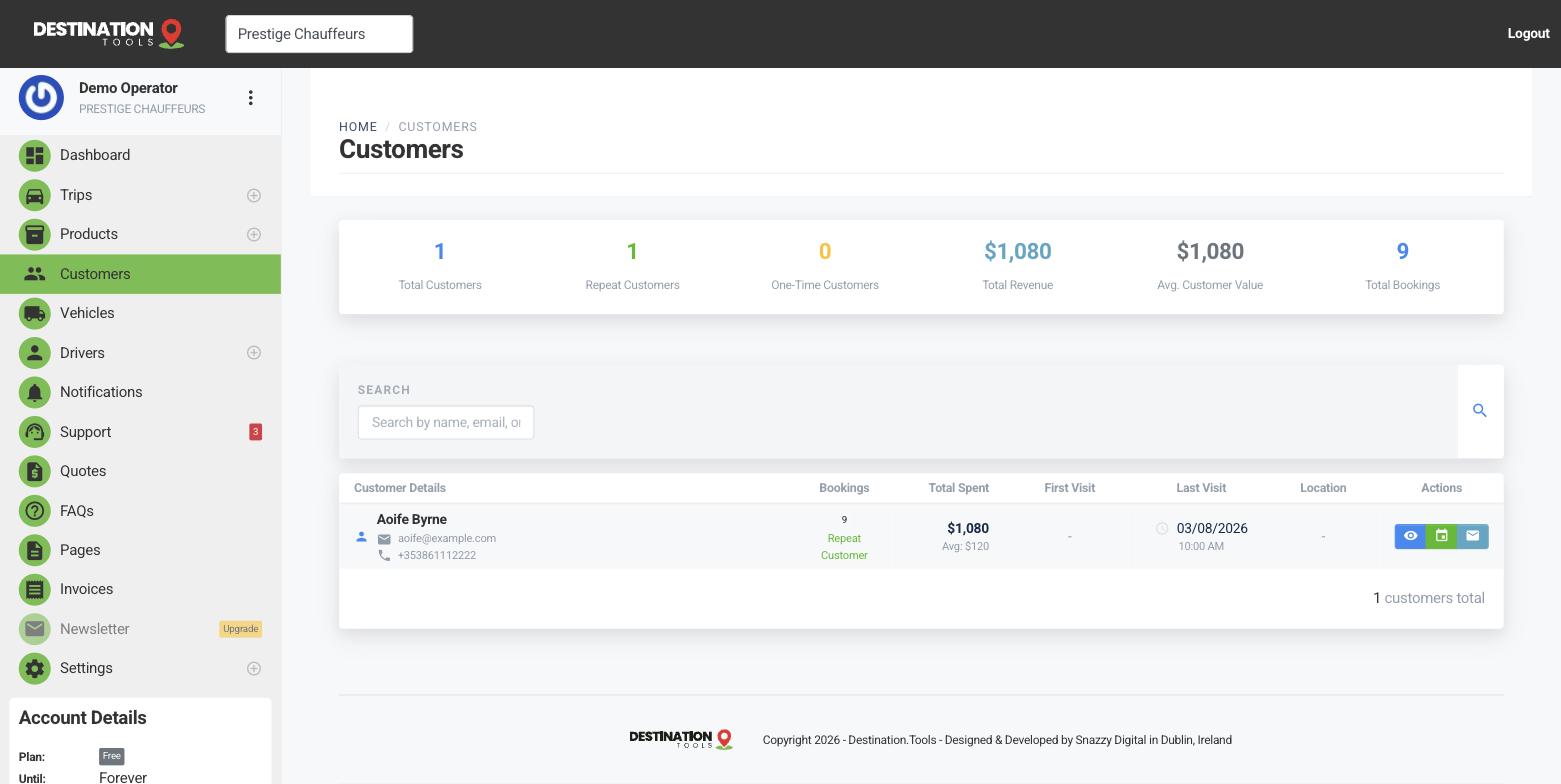
Everyone in one place
Open Customers and you'll see every passenger and account you've dealt with — name, email and phone in a single, searchable list. Whether it's Aoife Byrne who rides with you every Friday or a one-off wedding booking from last spring, they're all here and easy to reach.
Where to find it
Dashboard → CustomersSearch and jump straight in
Type a name or email into the search box to jump to the person you need. From the list you can open a customer to see their full history — every trip and every invoice — without hunting through your inbox. See Customer details & history.
Where to find it
Customers → search by name or emailThe list builds itself
You never have to add customers by hand. Every time you create a trip, send a quote or take a booking through your public page, the customer's details are captured and filed here automatically. The more you work, the richer your customer list becomes — ready to be used again the next time they call.
Regulars and accounts
Hotels, corporate PAs and event companies that book again and again live in the same list as everyone else — there's no separate module to learn. Treat them as your regular accounts and lean on their saved history to rebook in minutes. See Corporate & account customers.
From a customer to a booking
The customer list is a starting point, not a dead end. Find the passenger, then create their next trip or send a fresh quote with their details already to hand. When the job's done, invoice it and the invoice files itself back against the same customer — closing the loop.
Still need help?
Can't find what you're looking for? Send our support team a message and we'll reply by email.