
SMS & WhatsApp notifications
Land confirmations, reminders and driver alerts where people actually look — their phone. A text the night before a 5am airport run is the best defence against a no-show.
Connect your Twilio account
SMS and WhatsApp are sent through Twilio, using your own account. In Integration Settings, add your Twilio account SID, auth token and phone number — and your WhatsApp-enabled number if you want to send on WhatsApp too — then enable it. Because the account is yours, the sender is a number your regulars recognise and Twilio bills you directly at their rates. Availability can depend on your plan; if you don't see it, check your subscription or use Contact support.
Your auth token is encrypted before it's stored and never shown back to you — reopen the page and the field reads Saved — leave blank to keep it. Leave it blank when you change your number or re-save and the saved token is kept; you only retype it if you rotate it at Twilio.
Where to find it
Dashboard → Settings → Integration Settings → Twilio (SMS / WhatsApp)WhatsApp needs an approved sender
SMS works as soon as your number is live. WhatsApp is stricter: Twilio has to approve your business as a WhatsApp sender, and until it does you only have the sandbox number, which can message people who have explicitly joined your sandbox and nobody else. That's the usual explanation for “SMS is fine but WhatsApp does nothing” — the credentials are right and the sender simply isn't approved yet.
Good order to do it in
1. SMS working
2. Twilio approves your sender
3. Turn WhatsApp on
Choose which messages go by text
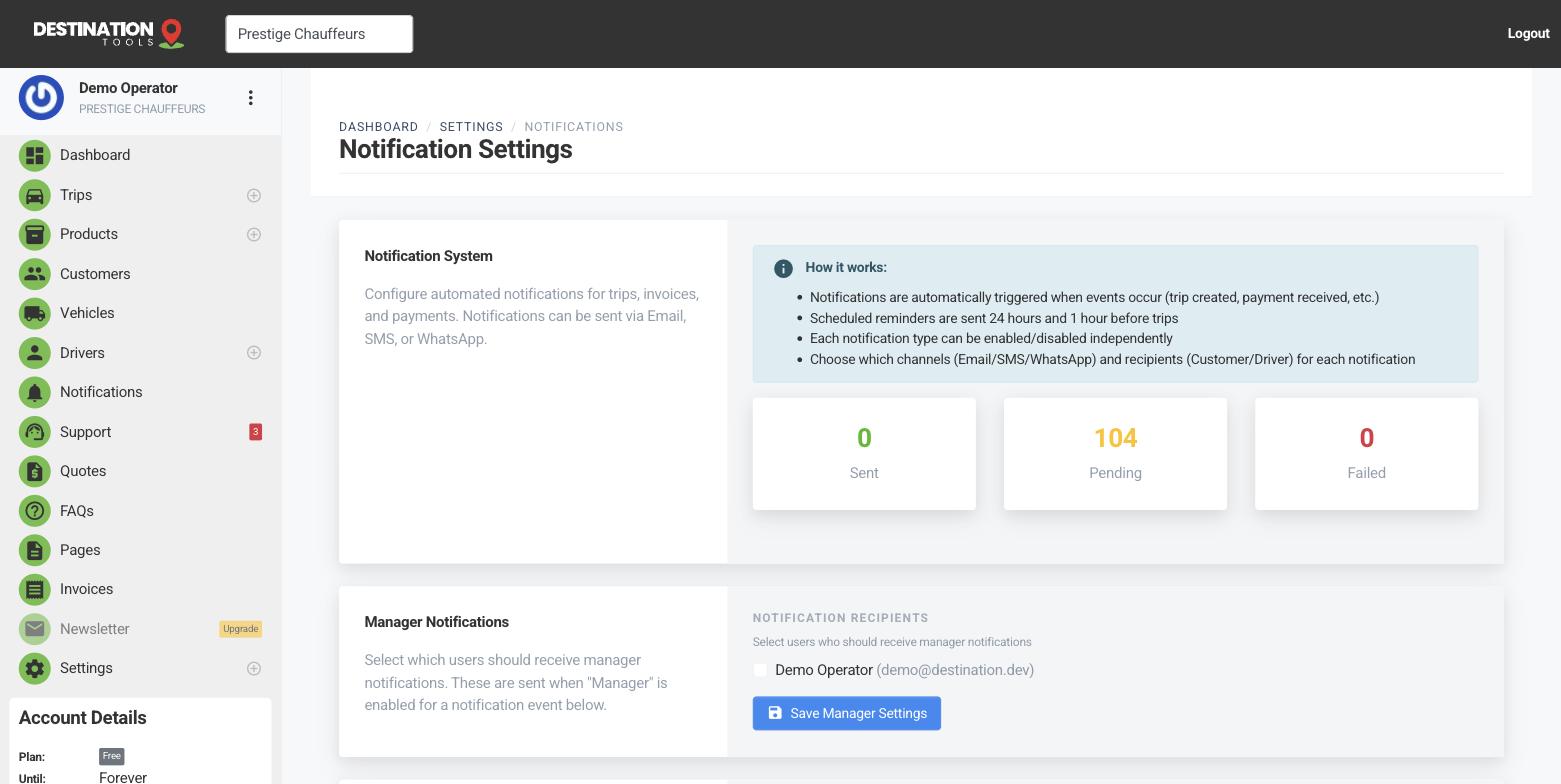
With Twilio connected, the channels appear on your notification events. In Notification Settings, switch SMS or WhatsApp on for the events and recipients you want — a booking confirmation to the customer, a pickup reminder, a new-job alert to the driver. You choose exactly what goes by text and what stays email-only.
Where to find it
Settings → Notification Settings → event → SMS / WhatsAppTest before you rely on it
Send yourself a test notification on the SMS or WhatsApp channel to confirm your Twilio setup is working and the message reads the way you want. It's worth doing once at setup so the first real text a customer receives is exactly right.
Where to find it
Notification Settings → Send test notification → SMS / WhatsAppWhen to use it
Reserve text and WhatsApp for the time-critical moments — the reminder before an early pickup, the “your driver is on the way” nudge — and keep the full details in the confirmation email. That way Aoife Byrne gets a glanceable heads-up on her phone and a complete record in her inbox, and you get far fewer anxious calls.
When a text doesn't arrive
Texts go out on the same schedule as your notification emails, so a message can be a few minutes behind the thing that triggered it — that's normal. If nothing arrives at all, check in this order: Twilio is enabled in Integration Settings; the event has its SMS switch on; the customer has a phone number on their record in full international form with the country code; and your Twilio account has credit.
087 123 4567 is the single most common cause of a text that never lands. Twilio needs +353871234567 — country code, no spaces.Still need help?
Can't find what you're looking for? Send our support team a message and we'll reply by email.