
Return, round-trip & multi-stop bookings
Booking someone out and back, or a job that calls in several places along the way? Capture the whole thing as one trip.
Add the return leg
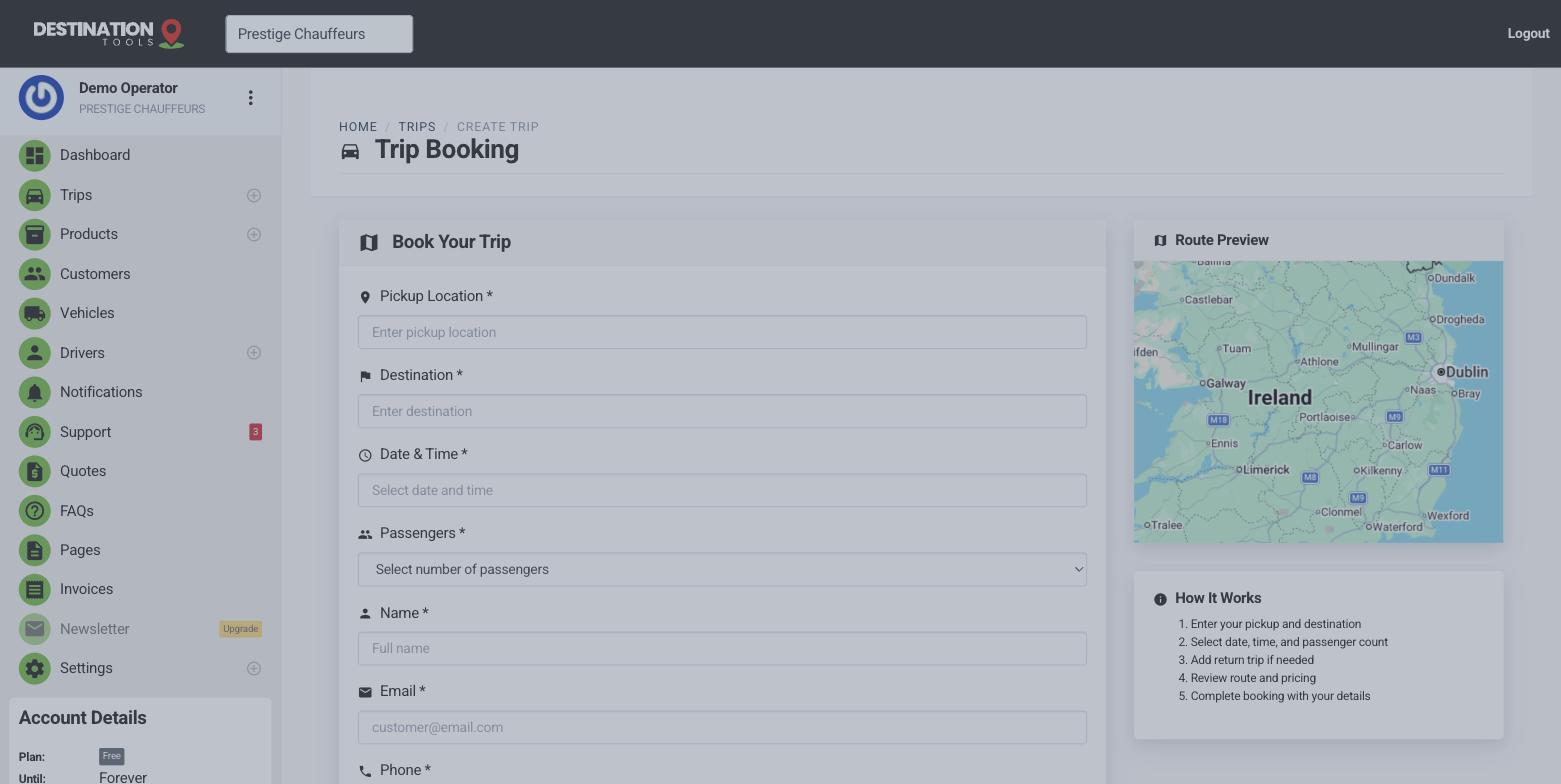
When you create a trip, tick Add return trip to book the inbound journey at the same time. We create the return by swapping the pickup and drop-off, carrying over the vehicle and the distance, so you don't re-enter anything. You just set the return date and time.
Where to find it
Trips → New trip → Add return tripTwo linked legs, one booking
The outbound and return stay linked, so you can see the whole job together and make sure both legs have a driver and a vehicle. You can assign the same driver to both or split them — handy when a morning airport drop and an evening pickup suit different people on your roster.
Where to find it
Trips → open the trip → linked return legStops along the way
A trip is not limited to one pickup and one drop-off. On the trip form, use Add a stop to build the route the job actually takes — a night out with three venues, a roadshow, an airport run with a hotel drop on the way. Stops sit between the pickup and the destination, and you can drag them into a different order or remove them right up until the job is dispatched.
Distance and price are then worked out across the whole route rather than a single hop, using your vehicle’s own per-km rates. Each stop shows the distance and driving time from the one before it, so you can see where the mileage is going. Reorder a stop and those figures are measured again, because each one describes the hop from the stop before it.
Customers can add stops too. Your public booking page takes up to three, with the waiting they need at each, and quotes the whole route.
Where to find it
Trips → New trip → Stops along the way → Add a stopCharging for waiting
Set a Wait against any stop where the car is held — a meeting, a viewing, dinner. Waiting is charged beyond a free allowance, so a ten-minute pause costs nothing while a two-hour wait is billed. Waiting at the pickup and the final drop-off is never charged: those are the edges of the job, not pauses in it.
It is billed per minute past the allowance rather than rounded up to the hour, so a 45-minute wait on a €30/hour rate with 15 minutes free adds €15.00 — the half hour the car actually stood. Set the rate once for the whole fleet under Settings, and override it on any vehicle that should cost more to hold.
Where to find it
Settings → Business Settings → Waiting time
Fleet → a vehicle → Waiting Time  (to override)
What the driver sees
The driver’s run sheet lists every stop in order, numbered, each with its own Navigate button and any waiting time you have set. They never have to read a route out of the notes field, and the office is not fielding “where am I going after this?” calls.
The same ordered route appears in the operator app, on the dispatch board and on the invoice — a multi-stop job is described by its whole route, not just its first and last address.
Where to find it
Driver link → Route → Stop 1, Stop 2, …Airport out-and-back
Round trips shine for travel: book the departure transfer to the airport and add the return as an arrival, and both legs are captured together with their timing. Add the flight number to each so your driver meets the right flight coming home — see Airport transfers.
Still need help?
Can't find what you're looking for? Send our support team a message and we'll reply by email.