
Photos & display order
A clear photo and a sensible order make the right vehicle easy to pick — for your team on a busy day and for customers on your booking page.
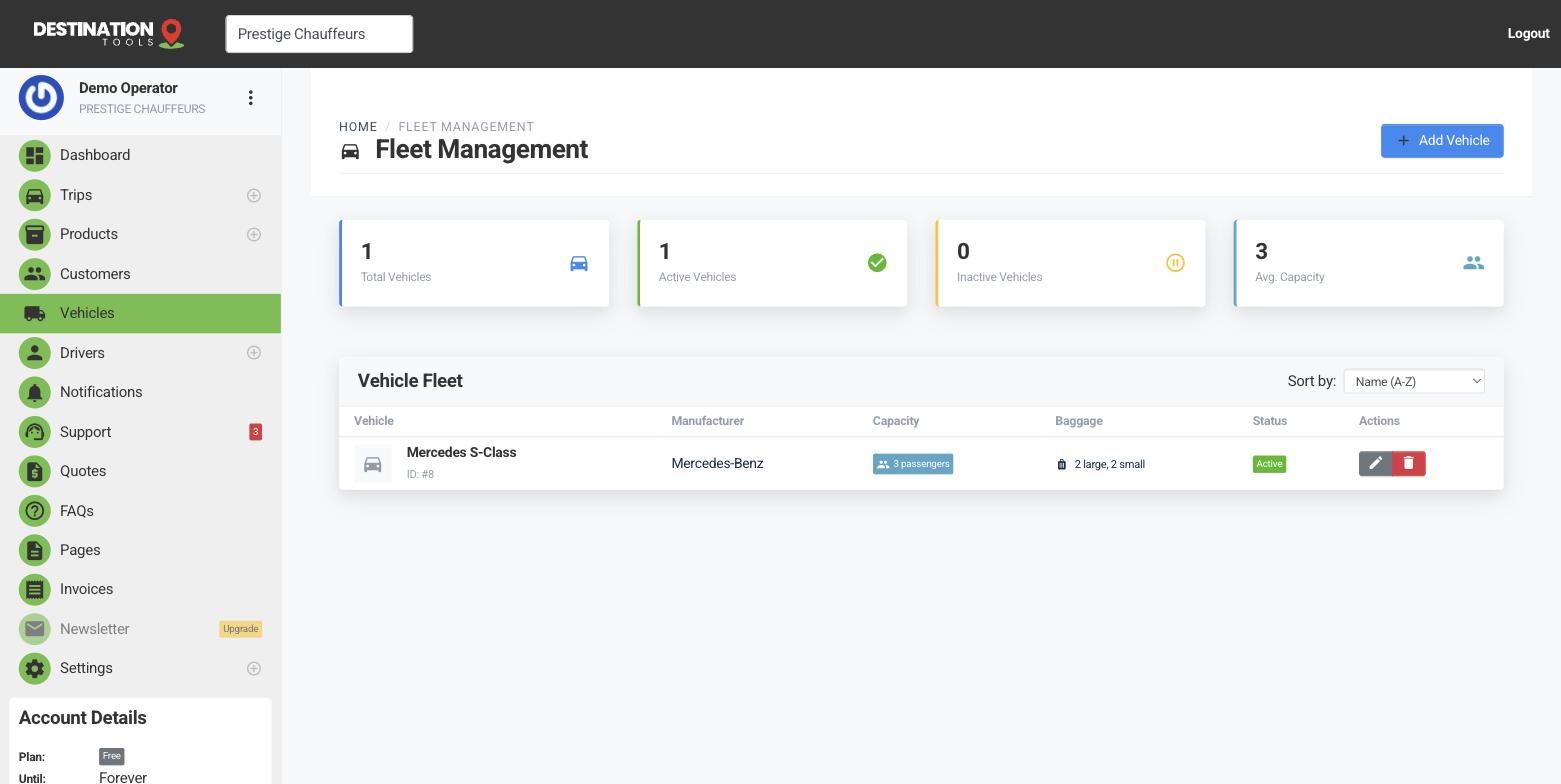
Add a photo
Each vehicle carries one photo. On the edit screen you can either paste an image URL or use Upload Vehicle Image to send a picture from your computer — a live preview shows what you'll get. Uploading a new image replaces the old one, so swapping in a better shot is a one-step job. Use a clean, well-lit photo of the actual class of car; it's what a customer sees when they choose.
Where to find it
Dashboard → Vehicles → edit a vehicle → Upload Vehicle ImageSet the display order
Give each vehicle a display order number. The lower the number, the higher it sits in the list, so you can float your most-booked cars — the Mercedes S-Class, the executive van — to the top. This order is used across the app and on your public booking page, so the vehicles you sell most are the first a customer sees.
Where to find it
Edit vehicle → Display Order (lower = higher up)Presentation counts
Good photos and a tidy order quietly do a lot of selling. A customer weighing up an executive saloon against a people carrier decides largely on what they can see, so it pays to keep both current as your fleet changes. When you add a new car, drop it into the order where it belongs rather than leaving it stranded at the bottom.
Still need help?
Can't find what you're looking for? Send our support team a message and we'll reply by email.