
Add a car
Your fleet drives your pricing. Add each vehicle once, with its capacity and rates, and every trip and quote prices itself.
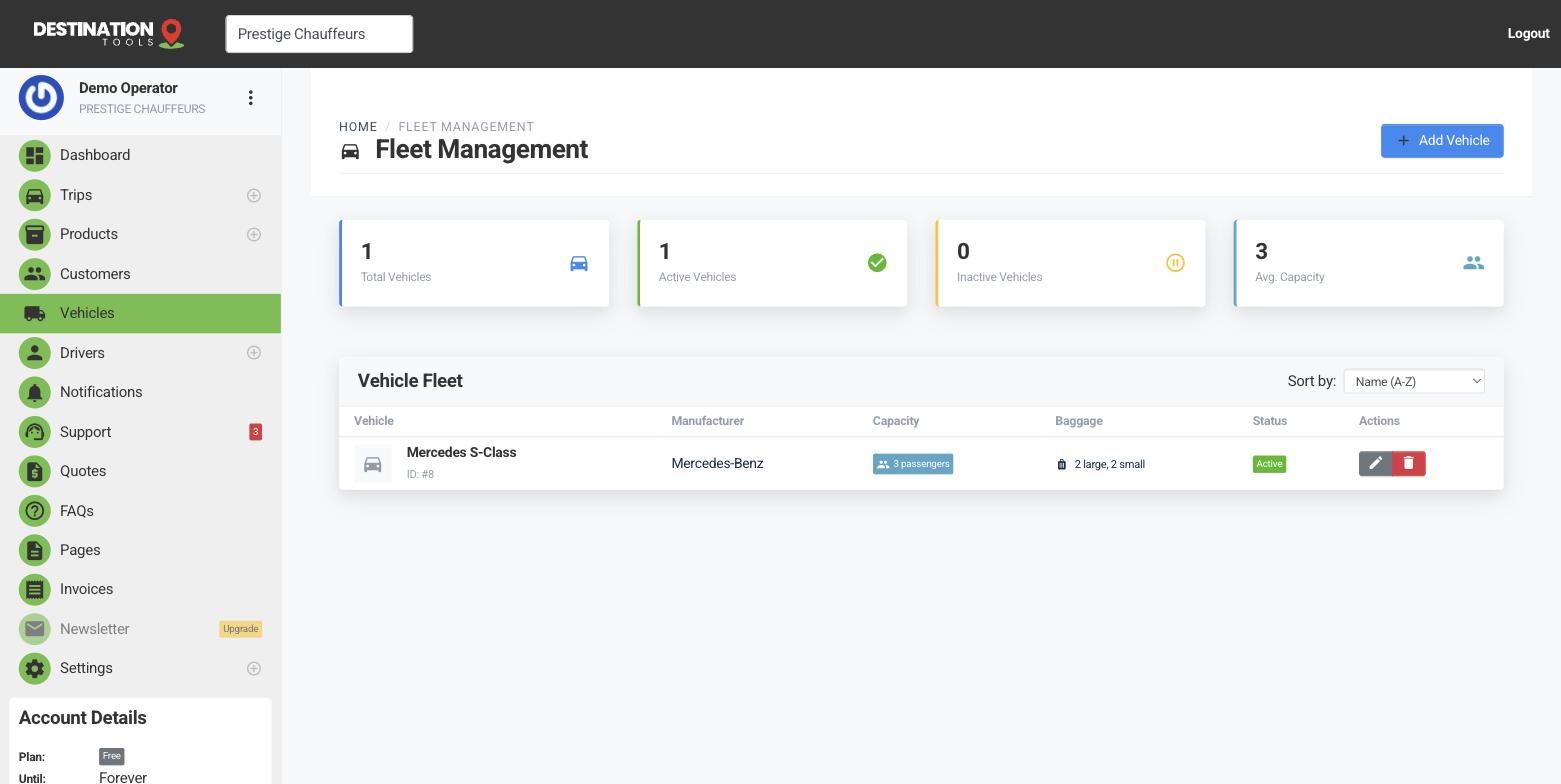
Add the vehicle
Go to Cars and select Add car. Give it a clear name your team will recognise — “Mercedes E-Class” or “8-Seater Van” — and the manufacturer. Add a photo so it's easy to pick the right vehicle on a busy day, and set the display order to keep your most-used cars at the top of the list.
Where to find it
Dashboard → Cars → Add carSet capacity and luggage
Enter the maximum number of passengers, plus how many large and small bags the vehicle takes. These limits keep quotes honest — a customer with five passengers and six suitcases won't be offered a saloon. Capacity is used across the app, from the booking page to the dispatch board.
Where to find it
Add car → Passengers, large bags, small bagsSet the pricing
Each vehicle carries its own pricing so distance-based quotes are automatic:
- Base fare — a starting price for the job, with an optional distance included in that price.
- Per-kilometre rate — charged for distance beyond what's included.
For long runs you can switch on tiered pricing and charge a different per-km rate as the journey gets longer — see Tiered distance pricing.
Still need help?
Can't find what you're looking for? Send our support team a message and we'll reply by email.